Twitch panel
Your card, live numbers and crosshair under your stream. Install the extension, enter one code, done. Everything else is optional.
Install the extension
The panel sits in the About area under your stream, 318 px wide and never taller than 500 px.
- Open your Twitch Creator Dashboard.
- Go to Extensions and search for “PlayerCards”.
- Click Install.
- Under My Extensions, click Activate and choose a panel slot.
Connect it with a pairing code
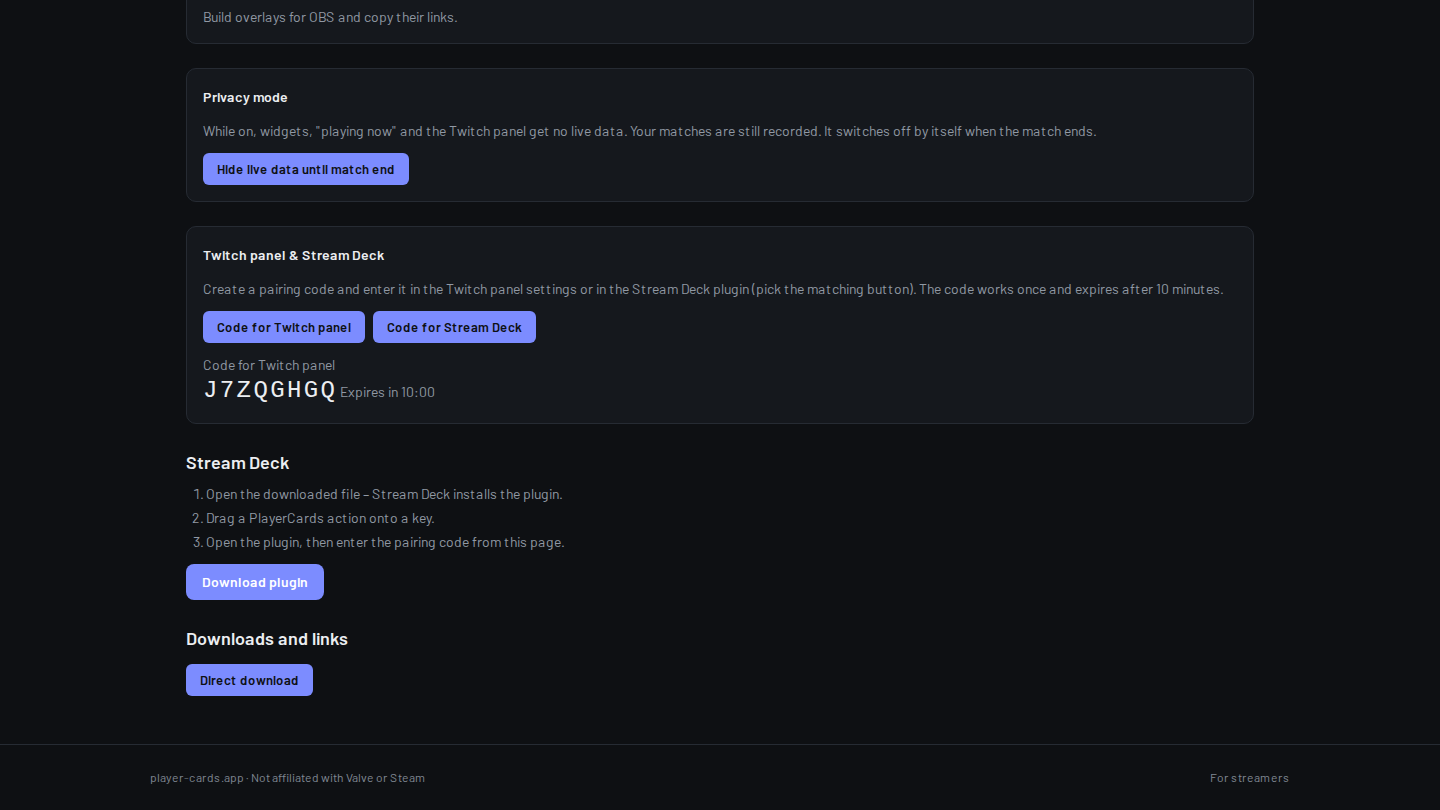
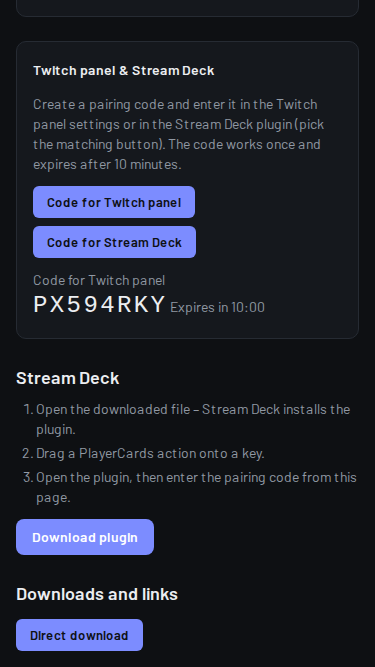
A code works once and expires after 10 minutes. If it has run out, create a new one. Once connected, the settings page shows “Connected to” with your card’s name.
- On player-cards.app, open your creator page and scroll to “Twitch panel & Stream Deck”.
- Click “Code for Twitch panel”.
- In the Creator Dashboard, open the PlayerCards extension’s settings (the gear icon).
- Enter the code under “Pairing code” and click Connect.
- Your creator page
https://player-cards.app/me/creator/
Settings
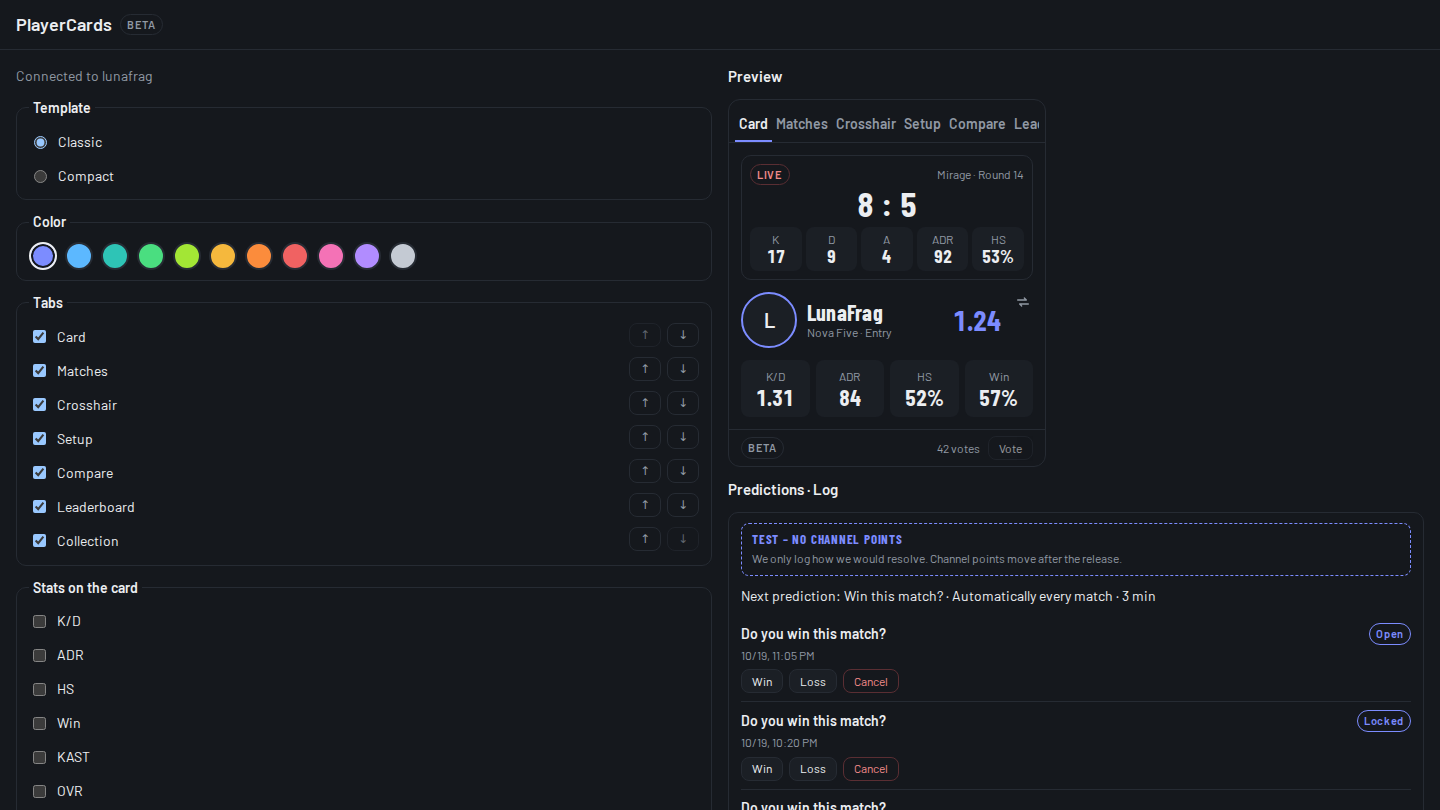
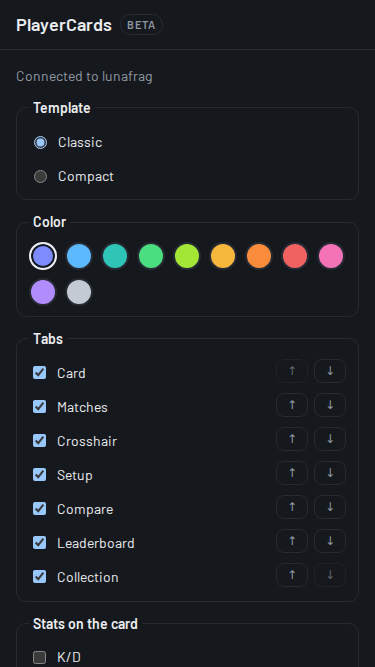
Nothing here is required: the defaults are a complete panel. The settings page shows a live preview next to the options, and Save applies them.
- Template: Classic or Compact, plus an accent colour.
- Tabs: turn Card, Matches, Crosshair, Setup, Compare, Leaderboard and Collection on or off and change their order. At least one tab stays on.
- Stats on the card: pick up to 6.
- Interactions: Vote, Compare, Leaderboard and Collect cards. Turn one off and its tab goes too.
- Language: Automatic (follows the viewer’s Twitch language), Deutsch or English.
- Disconnect removes the panel’s connection to your card right away.
Privacy
The panel only shows what your card shows. Hide your card on player-cards.app and viewers see “Private” instead.
Matches and win rate need a public match history. If yours is not public, the panel shows “Private” there instead of empty tabs, and the settings page tells you so.
Delete my Twitch data on player-cards.app/me/twitch removes your channel with its panel settings, votes, collections and predictions.
Predictions and channel points
Optional. Connect Twitch on player-cards.app/me/twitch to let PlayerCards start and resolve predictions after each match and to add a “Show my card” channel points reward.
Twitch only allows predictions and channel points for Affiliate and Partner channels. Without it you can still connect, but these two stay off. Connect again after you become Affiliate.
Templates (win, kills, ADR, ace), the start (every match or by button) and the window are set in the panel’s settings. Predictions are in test mode for now: we log how we would resolve, no channel points move yet.
- Twitch connection
https://player-cards.app/me/twitch/
On phones
This version of the panel is for Twitch in a desktop browser. The Twitch apps on phones and tablets don’t show it yet, so viewers there see the rest of your About section as usual.
Troubleshooting
- “PlayerCards not connected” in the panel: the channel is not paired yet, or it was disconnected. Create a new code and connect again.
- “Code invalid or expired”: the code was already used or is older than 10 minutes. Create a new one.
- “No connection – retrying …”: PlayerCards can’t be reached right now. The panel keeps trying by itself.
- “Card not visible” on the settings page, or “Private” or “Card not available right now” in the panel: your card is hidden or still empty. Make it visible on player-cards.app and it shows up.
- “Twitch has not authorized the extension”: reload the page. Twitch hands the panel its sign-in when the page loads.
- “Private” under Matches or win rate: your match history is not public.