How to show your FACEIT Elo in OBS
Your FACEIT level, Elo and how much you won or lost today, live on stream. One free widget, one browser source, about five minutes. You do not need a FACEIT API key.
What you get
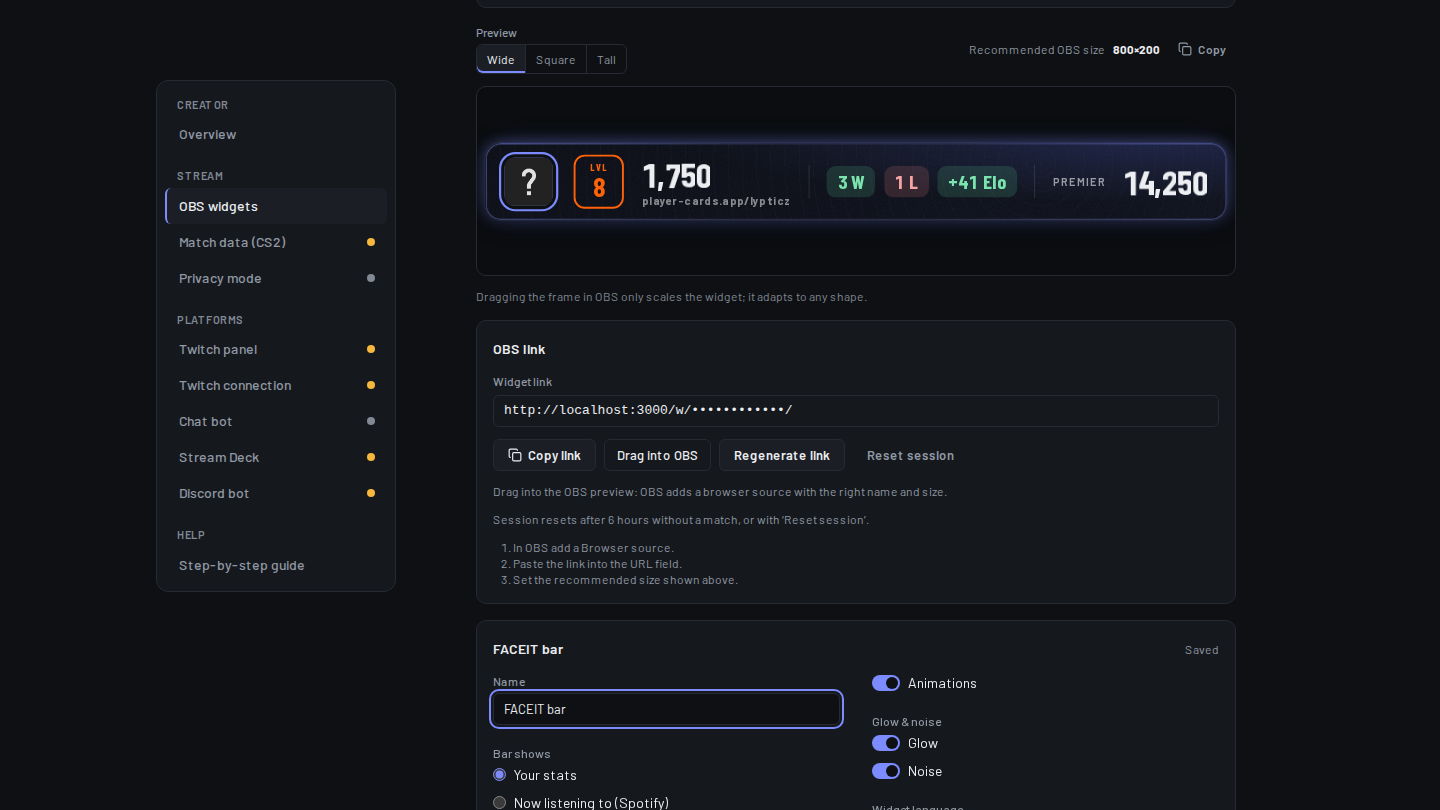
The PlayerCards widget is a small web page that OBS shows as a browser source. It reads your FACEIT profile and updates itself after every match: level badge, current Elo, Elo today (for example +48) and your wins and losses of the session.
It also knows your Premier rating and your PlayerCard, so the same widget can rotate between FACEIT, Premier and your card. The background is transparent, so it sits on top of your game like any other overlay.
Step 1: create the widget
- Sign in on player-cards.app with Steam. Your FACEIT account is found through your Steam account, there is nothing to connect.
- Open Widgets in your creator dashboard (player-cards.app/me/widgets) and click New widget.
- Pick a layout. Compact bar is one slim line with level, Elo and Elo today. Rotation cycles your card, FACEIT today, Premier and the Elo graph. Mini shows just avatar, name and OVR.
- Give it a name, for example “FACEIT bar”. The preview on the right updates with every change.
Step 2: pick what it shows
Under Elements, tick what you want to see: Level, Elo, Elo today, W/L today, the last results and Premier. Untick everything you do not need; a clean bar reads better on stream than a full one.
Elo today counts from the start of your session. A session ends after 6 hours without a match, or when you click Reset session (also possible from a Stream Deck key).
Step 3: rotation
A Rotation widget switches between its views on its own. Under Views, tick the ones you want and move them up or down to set the order. Rotation speed goes from 3 to 30 seconds per view.
If a view has nothing to show, for example the Premier view before your first Premier match, the rotation simply skips it.
Step 4: background and transparency
Under Background, choose Transparent to put only the numbers on your game. Prefer a panel? Pick one of the colour themes and set Panel opacity, for example 70 %, so the game still shines through.
Accent colour, font, corner radius and size are optional. The defaults are made to look good without any change.
Step 5: add it to OBS
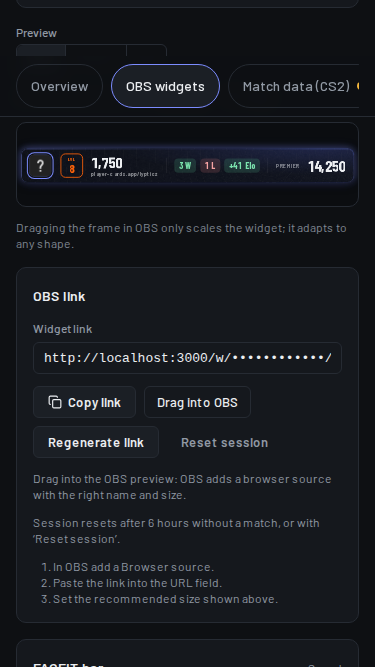
- Click Copy link in the widget editor. On a PC with OBS open you can also drag the Drag into OBS button straight into the OBS preview: OBS adds the source with the right name and size.
- In OBS, open your scene. Under Sources click +, then Browser.
- Paste the link into the URL field.
- Set the size: 800×200 for a bar or rotation, 400×400 for Mini. Click OK.
- Move and scale the source with its corner handles. Leave the custom CSS as it is: the background is already transparent.
- Bar or rotation
800×200 - Mini
400×400
Streamlabs and other apps
Streamlabs Desktop: Sources → + → Browser Source, then paste the same link and size. Every app that can show a web page as a source works the same way, for example Meld or XSplit.
FAQ
Does the Elo update live?
Yes. The widget checks FACEIT about once a minute and animates the new Elo right after your match ends; you never reload anything. With your own free FACEIT API key (optional, under Data sources) it updates in real time.
Does it cost anything?
No. The widget, the FACEIT and Premier numbers and the OBS link are free. You do not need a FACEIT subscription or an API key.
Does it work with Streamlabs or Twitch Studio?
It works in every streaming app that has a browser source: OBS Studio, Streamlabs Desktop, Meld and XSplit. Paste the same link. In Twitch Studio, use a browser source layer if your version offers one; otherwise OBS and Streamlabs are free and take two minutes to set up.
Can viewers see my FACEIT key or account?
No. The link only shows the widget. Your key stays encrypted on our server and never reaches OBS or the browser. If a link leaks, generate a new one in the editor and the old one stops working at once.
Can I hide my Elo while I play?
Yes. Privacy mode hides the live values until you switch it off, or after 90 minutes on its own. The widget itself stays on screen.