CS2 Premier rating overlay for OBS
Your Premier rating on stream, next to your FACEIT Elo or on its own, plus live score and K/D while you play. Free, no API key, set up in a few minutes.
What the overlay shows
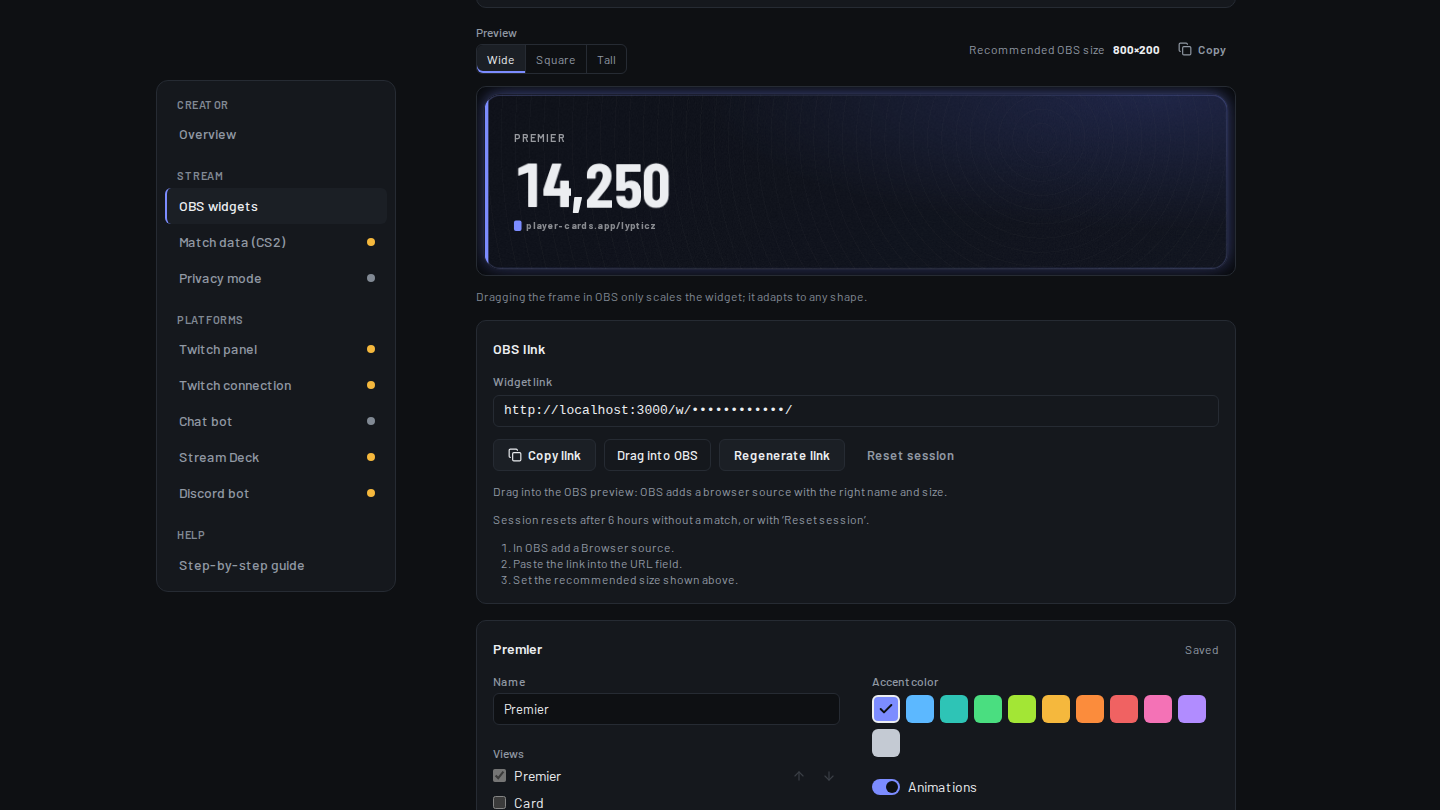
The PlayerCards widget is a browser source for OBS. Its Premier view shows your current CS2 Premier rating as one big number, so viewers see at a glance where you stand.
The rating comes from your public match history and refreshes once a day. You do not need to enter a key or a share code for it; signing in with Steam is enough.
For values that change every round (score, map, round, your kills, deaths, assists and MVPs) the widget adds a Live CS2 view. That one reads the game itself through CS2 game state integration, see step 4.
Step 1: the Premier view
- Sign in on player-cards.app with Steam and open Widgets in your creator dashboard (player-cards.app/me/widgets).
- Click New widget and pick Rotation. It already contains the Premier view, next to your card, FACEIT today and the Elo graph.
- Want Premier only? Under Views, untick everything except Premier. Want it first? Move it to the top with the arrows.
- Pick a background: Transparent for numbers on the game, or a colour theme with Panel opacity for a calm panel.
Step 2: Premier and FACEIT in one bar
Most CS2 streamers play both Premier and FACEIT. The Compact bar puts both into one slim line: FACEIT level, Elo, Elo today and your Premier rating. It fits the top or bottom edge of your scene and does not cover the game.
Click New widget, pick Compact bar and, under Elements, keep Premier ticked. Untick the FACEIT parts if you only play Premier.
Keep it readable: one bar at the top edge, the accent colour of your channel and Transparent background are usually all you need. Viewers read the number from far away, so leave the size at its default and scale the source in OBS instead.
Step 3: add it to OBS
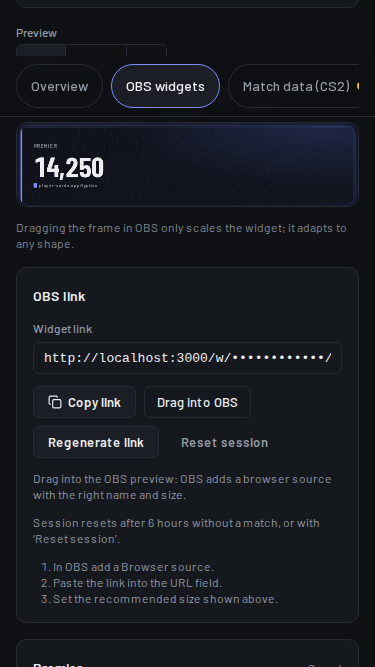
- In the widget editor click Copy link, or drag the Drag into OBS button into the OBS preview.
- In OBS, under Sources click +, then Browser, and paste the link into the URL field.
- Set Width and Height: 800×200 for the bar or the rotation. Click OK.
- Place it with the corner handles. The background stays transparent by itself.
- Bar or rotation
800×200
Step 4: live values with game state integration
CS2 can send your live match data to a small config file, the game state integration (GSI). With it, the widget shows score, map, round and your K/D/A while you play, and switches back to Premier and FACEIT when the match is over.
Under Data source in the widget editor, keep Automatic: live CS2 values while you play, FACEIT and Steam numbers otherwise.
- Open Settings → Match data in your dashboard and download the match-data file.
- Put it in your CS2 cfg folder. Do not rename it and do not add it to your autoexec.
- Restart CS2. The Live CS2 view appears in your rotation as soon as a match starts.
- File name
gamestate_integration_playercards.cfg - Folder
…\steamapps\common\Counter-Strike Global Offensive\game\csgo\cfg\
FAQ
How often does the Premier rating update?
Once a day. The live values from game state integration (score, round, K/D/A) update every round while you play.
Does game state integration risk a VAC ban?
No. Game state integration is a feature built into CS2 by Valve for overlays and tools. It only sends data out of the game and changes nothing in it.
Is the overlay free?
Yes. Widgets, the Premier view, the compact bar and the live values are free.
I have no Premier rating yet. What shows?
The Premier view stays out of the rotation until there is a rating. The rest of the widget keeps working.